Tutorial 3 of 7
TLS scenarios and changes over time
Intermediate 8 min
Compare two TLS profiles client by client, duplicate an item to test a change, and use the history to see which findings a change fixed.
The TLS Cipher Suite Simulator tells you which protocol, cipher and key exchange 36 recorded clients (browsers, Android, Java, OpenSSL, curl) would negotiate with a configuration. Keysmith turns that into a what-if lab.
1. Two profiles, side by side
Open the Web shop TLS & certificate audit template and switch to Compare. Keysmith picks the two TLS items automatically: Scenario A is Current server profile (Mozilla old), Scenario B Proposed profile (Mozilla intermediate).
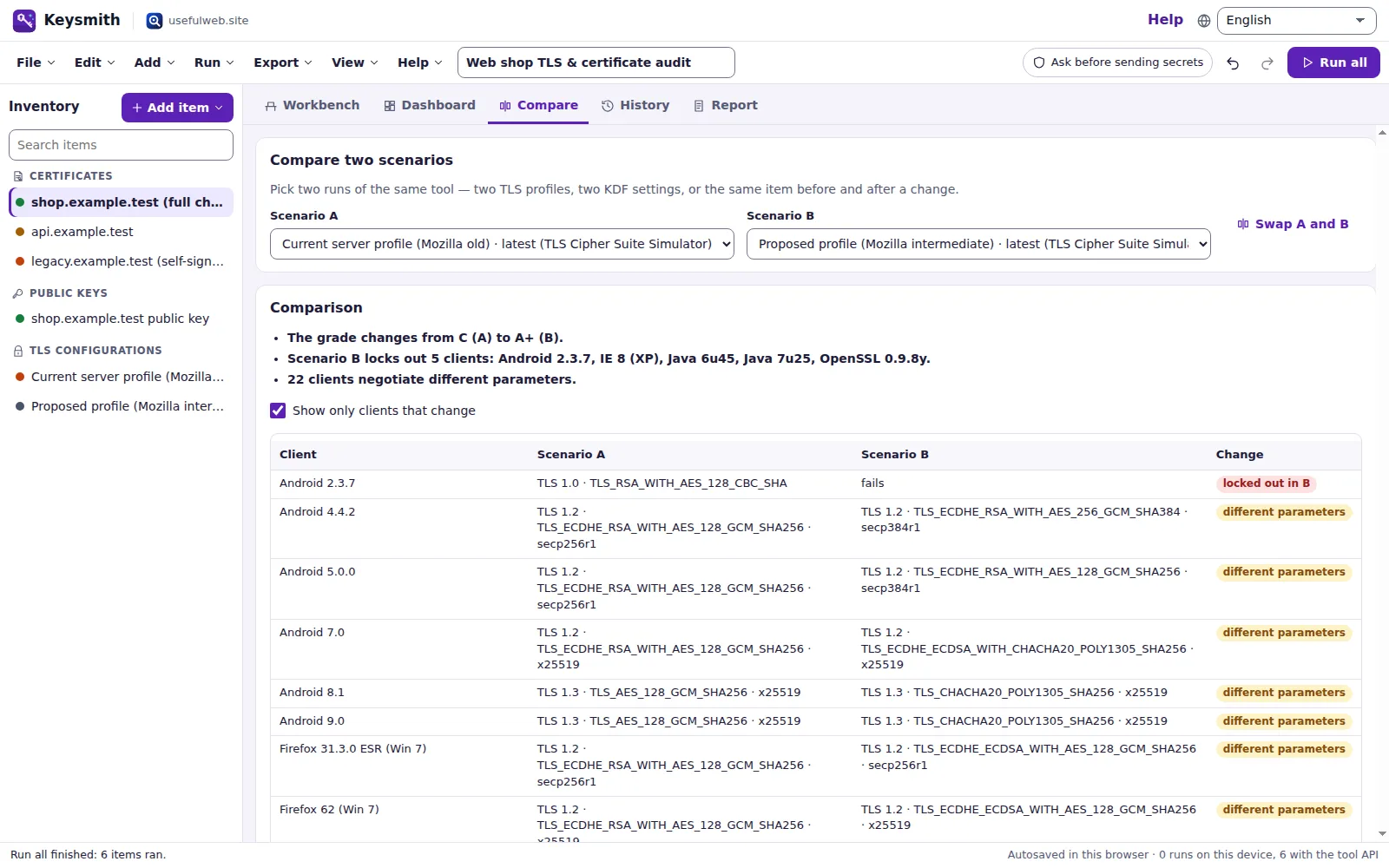
The summary on top is written in plain sentences, for example The grade changes from C (A) to A+ (B). and Scenario B locks out … clients: … — the old Android and Java versions that only speak TLS 1.0.
The table Handshakes per client lists only clients that change (untick Show only clients that change to see all). The last column says connects in B, locked out in B or different parameters. Below it, Metrics compares grade and handshake counts, and Findings only in A / only in B show what the change fixes and what it introduces.
2. Test your own change
- Select Proposed profile (Mozilla intermediate) and press Ctrl+D (or Edit → Duplicate item).
- In the copy set Server profile to Custom cipher list. Paste your cipher string into Cipher suites, tick the Enabled protocol versions and edit Key-exchange groups.
- Press Simulate handshakes (or Ctrl+Enter).
- In Compare, choose the copy as Scenario B.
The Swap A and B button flips the direction of every sentence.
3. Changes over time
Every run is stored with its findings and metrics. Change the copy again (for example remove TLSv1.3) and run it once more. The History tab lists the runs of the item, newest first, and under each run the differences to the previous run of the same tool:
- New — a finding that appeared (red tag),
- Resolved — a finding that disappeared (green tag),
- Changed — a metric such as Grade: A+ → A.
Values that change by themselves, such as the days remaining of a certificate, are not listed as changes.
Clear history removes the runs of one item; Undo brings them back.
4. Use it for certificates as well
The same history works for certificates: paste the renewed certificate into the item and run it. The history then shows the expiry finding as Resolved and Expiry date as Changed. Combine it with Review by dates and the .ics export to plan the next renewal.
Ready to try it?